
- Why You Might Need to Reset Your Smartwatch
- Soft Reset vs. Factory Reset — What's the Difference
- Before You Reset — Important Preparation Steps
- How to Reset a Smartwatch — Step-by-Step Methods
- How to Reset Specific Smartwatch Brands
- Troubleshooting Common Reset Problems
- When to Contact Support Instead of Resetting
- Final Thoughts
Whether your device is freezing, draining battery overnight, or you’re getting ready to sell it, knowing how to reset smartwatch hardware gives you a reliable fix for almost any software problem. This comprehensive guide walks you through every reset method — soft restarts, full factory wipes, button-combination hard resets, and companion app resets — so you can answer the question “how do I reset my smart watch?” no matter what brand or model you own. If you’ve been searching for how to reset a smart watch quickly and safely, you’re in the right place.
Why You Might Need to Reset Your Smartwatch
Smartwatches run full operating systems, connect to the internet, and store personal health data — heart rate logs, sleep patterns, GPS routes, and notification histories. Over time, software glitches accumulate. Here are the most common situations where learning how to reset a smart watch becomes necessary:
- Frozen or unresponsive touchscreen — the watch won’t register taps or swipes
- Persistent Bluetooth failures — the watch won’t pair or stay connected to your phone
- Rapid battery drain — especially after a firmware update that introduced bugs
- App crashes and sync errors — health data stops syncing, notifications stop arriving
- Selling or gifting the device — you need to erase all personal data before handing it over
- Switching to a new phone — a clean reset prevents pairing conflicts with the new device
A common question is: how do I reset my smart watch if the screen won’t respond? The answer depends on whether you need a soft reset (restart) or a factory reset (full erase). Both methods are covered below. Understanding how to reset smartwatch devices properly can save you a trip to the repair shop and keep your personal data secure.
A reset is often the fastest path back to a fully functional device. And with the global smartwatch market projected to reach $44.28 billion in 2026 (Fortune Business Insights), more people than ever are upgrading — making it essential to know how to reset smartwatch units before passing them on to someone else. Knowing how reset smart watch settings work also helps when troubleshooting persistent connectivity issues.
Soft Reset vs. Factory Reset — What’s the Difference
Before you start pressing buttons, understand which type of reset your situation calls for. Anyone searching for how to reset smart watch devices should first decide between these two approaches. The wrong choice could mean unnecessary data loss — or an incomplete fix.
| Aspect | Soft Reset (Restart) | Factory Reset (Hard Reset) |
|---|---|---|
| What it does | Restarts the operating system | Erases all user data and restores original settings |
| Data deleted | None | Everything — apps, settings, accounts, health data |
| Time required | 30 seconds to 2 minutes | 2 to 10 minutes |
| When to use | Minor glitches, slow performance, sync issues | Selling device, persistent bugs, switching phones |
| Reversible | Yes — no data is lost | No — data is permanently erased |
Choose a soft reset when your watch is slightly slow, has minor syncing issues, or shows temporary glitches after a software update. Choose a factory reset when the watch is completely frozen, you’re selling it, or persistent software bugs survive a restart. If you’re unsure how to reset a smartwatch without losing data, start with a soft reset — it never deletes anything and is the safest first step in how to reset smartwatch troubleshooting.
Before You Reset — Important Preparation Steps
Three preparation steps apply regardless of which reset method you choose. Anyone learning how to reset smartwatch hardware should complete these steps first. Skipping them can lead to data loss or pairing headaches later.
Back Up Your Data
Most companion apps — Galaxy Wearable, Apple Watch app, Fitbit app — automatically sync health data, watch faces, and app configurations to your phone. Before you reset, open the companion app and confirm your latest data has synced. If your watch stores music or offline maps locally, transfer those files first. Some watches also let you export health data to a file — do this if you want a personal archive. This step is critical when you’re figuring out how reset smart watch settings without losing months of fitness tracking data.
Unpair from Your Phone
For a factory reset especially, unpairing first prevents orphaned Bluetooth connections and account lockouts. On your phone:
- Open Settings
- Tap Bluetooth (or Connections → Bluetooth on Samsung phones)
- Find your watch in the device list
- Tap the info or settings icon next to it
- Select Unpair or Forget This Device
For Apple Watch, unpairing through the Watch app automatically creates a backup of your watch data on your iPhone — so this step doubles as your backup. Knowing how to reset a smart watch properly starts with this unpairing step, because skipping it can cause the new owner to encounter activation lock issues.
Charge Your Watch
A reset can take several minutes. If the battery dies midway, the device may become bricked. Charge your watch to at least 50% before starting any reset process. If you’re doing a factory reset on an older watch with a degraded battery, charge it to 80% or higher for safety. This is one of the most overlooked steps when people ask how do I reset my smart watch — and it’s the easiest to skip.
How to Reset a Smartwatch — Step-by-Step Methods
There are three primary methods to reset a smartwatch. The right one depends on your watch’s current state — whether it’s responsive, frozen, or partially functional. No matter which brand you own, one of these methods will show you how to reset smartwatch devices effectively.
Method 1: Reset Through the Settings Menu (Most Common)
This is the standard approach for any smartwatch that’s still responsive. Learning how to reset a smart watch through settings works across most brands and is the safest method because it gives you clear confirmation prompts:
- Open the Settings app on your watch
- Scroll to System, General, or About
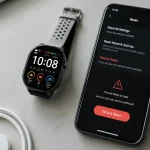
- Tap Reset, Factory Reset, or Erase All Content and Settings
- If prompted, enter your passcode
- Confirm the reset
- Wait for the watch to restart (this may take 2–5 minutes)
After the reset completes, the watch will boot to the initial setup screen — just like when you first unboxed it. This settings-based approach to how to reset smartwatch units is the method most manufacturers recommend in their user guides.
Method 2: Hard Reset Using Button Combinations
If your smartwatch is completely frozen and you can’t access the settings menu, a button-combination hard reset is your fallback. Many users search for how reset smart watch procedures when the touchscreen becomes unresponsive — this method works even when the display is dead.
The exact button combination varies by brand, but the general pattern is:
- Press and hold the power button (and sometimes a second button) for 10–15 seconds
- Wait for the manufacturer logo to appear
- Release the buttons
- The watch should reboot into recovery mode or restart normally
For watches with a recovery menu, use the power button to navigate and select “Wipe data/factory reset” or “Recovery mode.” This button-based method for how to reset a smartwatch is essential knowledge for anyone dealing with a frozen device. If you’re wondering how do I reset my smart watch when the screen is completely black, this button combination method is your best option.
Method 3: Reset via the Companion App
If you’re wondering how to reset smart watch devices remotely from your phone, most companion apps offer a reset option:
- Open the companion app (Galaxy Wearable, Apple Watch, Fitbit, etc.)
- Navigate to the watch settings within the app
- Look for “Disconnect & Reset,” “Unpair & Erase,” or similar
- Confirm the action
- The app will send the reset command to your watch
This method is especially useful when the watch’s touchscreen is partially functional but too laggy to navigate settings directly. When you ask how do I reset my smart watch from my phone, this companion app route is usually the answer. It’s also the cleanest way to learn how to reset a smart watch when you want to ensure all accounts are properly disconnected before the reset.
How to Reset Specific Smartwatch Brands
While the general methods above work for most devices, some brands have specific steps. Anyone learning how to reset smartwatch hardware should check the brand-specific instructions below, because button layouts and menu names differ across manufacturers.
| Brand | Settings Menu Reset | Hard Reset (Button Combo) | Companion App Reset |
|---|---|---|---|
| Apple Watch | Settings → General → Reset → Erase All Content and Settings | Hold side button + Digital Crown for 10 seconds until Apple logo appears | Watch app → General → Reset → Erase All Content and Settings |
| Samsung Galaxy Watch | Settings → General → Reset | Hold both buttons for 10+ seconds until reboot | Galaxy Wearable app → Watch settings → Reset |
| Fitbit | Settings → About → Factory Reset (on-device models) | Press and hold the button for 15+ seconds until logo appears | Fitbit app → Account → Device settings → Clear User Data |
| Garmin | Settings → System → Reset | Hold the light/button for 15 seconds | Garmin Connect app → Device settings → Reset |
| Generic Android Watch | Settings → System → Reset → Factory data reset | Hold power button for 15+ seconds | Wear OS app → Device settings → Reset |
Always check your device’s user manual for the exact button combination — some models require holding specific buttons during startup rather than during normal operation. If you’re still unsure how to reset a smartwatch from a specific brand, the manufacturer’s support page usually has a step-by-step guide with screenshots. The table above gives you a quick reference for how to reset smart watch devices from the five most common platforms.
Troubleshooting Common Reset Problems
Even with the right steps, resets don’t always go smoothly. Here’s how to handle the most common issues people encounter when learning how to reset smartwatch devices.
Watch Won’t Turn On After Reset
This is usually a battery issue, not a reset failure. Place the watch on its charger and wait at least 15–30 minutes before attempting to power it on. If it still doesn’t respond, try a different charging cable or port. Some watches need a few minutes on the charger before the display activates after a full wipe. If you’ve just completed a factory reset and the watch appears dead, don’t assume you broke it — patience and a charger often solve the problem. This is a frequent concern when people ask how do I reset my smart watch for the first time.
Reset Process Gets Stuck Midway
If the watch hangs during a factory reset, don’t panic. Let it sit for 10–15 minutes — some resets take longer than expected, especially on older models with slower processors. If it’s truly frozen after 15 minutes, perform a hard reset using the button combination method above, then try the factory reset again. This two-step approach — hard reset followed by factory reset — is how to reset smart watch units that are stuck in a limbo state.
Watch Still Shows as Paired on Phone
After a factory reset, the watch’s Bluetooth identity changes. If your phone still shows the old pairing, go to Bluetooth settings and “Forget” or “Unpair” the old device. Then set up the watch fresh as a new device. This also applies if the companion app still shows the old watch profile — delete the old profile and create a new one. Understanding how reset smart watch Bluetooth connections work prevents this common post-reset confusion.
When to Contact Support Instead of Resetting
A reset solves most software problems, but not hardware failures. Before you search for how to reset a smartwatch one more time, consider whether the issue is actually hardware-related. Contact the manufacturer’s support team if:
- The watch won’t charge after multiple attempts with different cables and ports
- The screen remains black after a hard reset and 30 minutes of charging
- Physical damage (water ingress, cracked screen) preceded the issue
- The watch is stuck in a boot loop after multiple reset attempts
- The device shows an account lockout message you can’t resolve
In these cases, the problem is likely hardware-related, and knowing how to reset smartwatch devices won’t help. Professional repair or a warranty claim is the right next step.
Final Thoughts
Knowing how to reset smartwatch devices — whether a quick soft restart or a full factory wipe — is one of the most practical skills any smartwatch owner can have. It fixes software glitches, protects your data when selling, and gives you a clean starting point when switching phones. Whether you need to know how to reset smart watch settings through the menu, how do I reset my smart watch using buttons, or how reset smart watch connections via an app, this guide has you covered.
The key is preparation: back up your data, unpair from your phone, and charge the device before you begin. Follow the step-by-step methods above, and you’ll handle almost any reset scenario with confidence. If you’re in the market for a new smartwatch after upgrading, explore our range of smart watches designed for health monitoring, fitness tracking, and everyday connectivity.